3 Things To Consider About SOLIDWORKS Licensing
Choosing the right SOLIDWORKS licensing model is about more than checking a box with IT. It can shape how your engineers work, how your company budgets, and how easily your team can grow over time.
At first glance, licensing can seem straightforward. However, once you dig in, the options can affect everything from daily productivity to long-term cost. That’s why it helps to understand the tradeoffs before making a decision.
Here are three important things to consider when choosing the best SOLIDWORKS licensing approach for your business.
1. SNL vs. Stand-alone: Which setup fits your team?
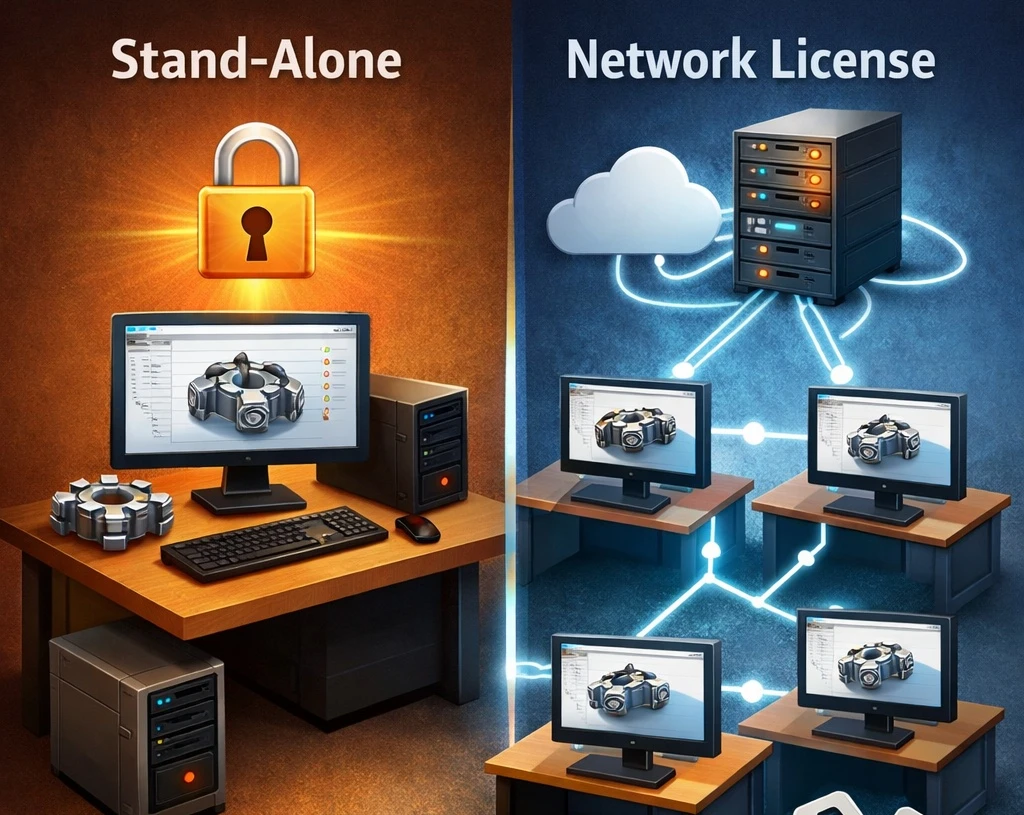
One of the first decisions is whether your team needs SolidNetWork Licensing (SNL) or stand-alone licenses.
An SNL license is a floating license managed through a license server. In other words, licenses live in a shared pool. When someone opens SOLIDWORKS, they check out a seat. When they close it, that seat goes back into the pool for someone else to use.
A stand-alone license, on the other hand, is tied to one machine or one user activation. Each workstation manages its own seat independently.
So, which one makes more sense?
If you have a team of engineers who do not all use SOLIDWORKS at the same time, SNL often gives you more flexibility. It can reduce the total number of seats you need, which may also lower cost. This model works especially well for teams with a mix of full-time users, occasional users, and contractors.
By contrast, stand-alone licensing is often the simpler choice for individual users or isolated workstations. For example, if someone works in the field or on a machine that rarely connects to the network, a stand-alone seat may be easier to manage.
That said, SNL does require more infrastructure. You need a license server, some IT setup, and ongoing administration. Stand-alone avoids that overhead, but it gives you less flexibility when you need to move or share licenses.
A simple rule of thumb:
If your team shares usage across multiple people, SNL usually offers better flexibility and efficiency. If one user needs one dedicated seat all the time, stand-alone may be the better fit.
2. Perpetual + Subscription vs. Term: Are you buying for the long run?
The next big decision is whether to choose perpetual licensing with subscription or a term license.
With perpetual licensing, you purchase the software and own that version. Then, you pay an annual subscription fee for updates, support, and access to newer releases.
With a term license, you are essentially renting the software for a set period, usually monthly or annually. While the term is active, you get support and updates. Once it ends, access ends too unless you renew.
This choice often comes down to time horizon and budgeting.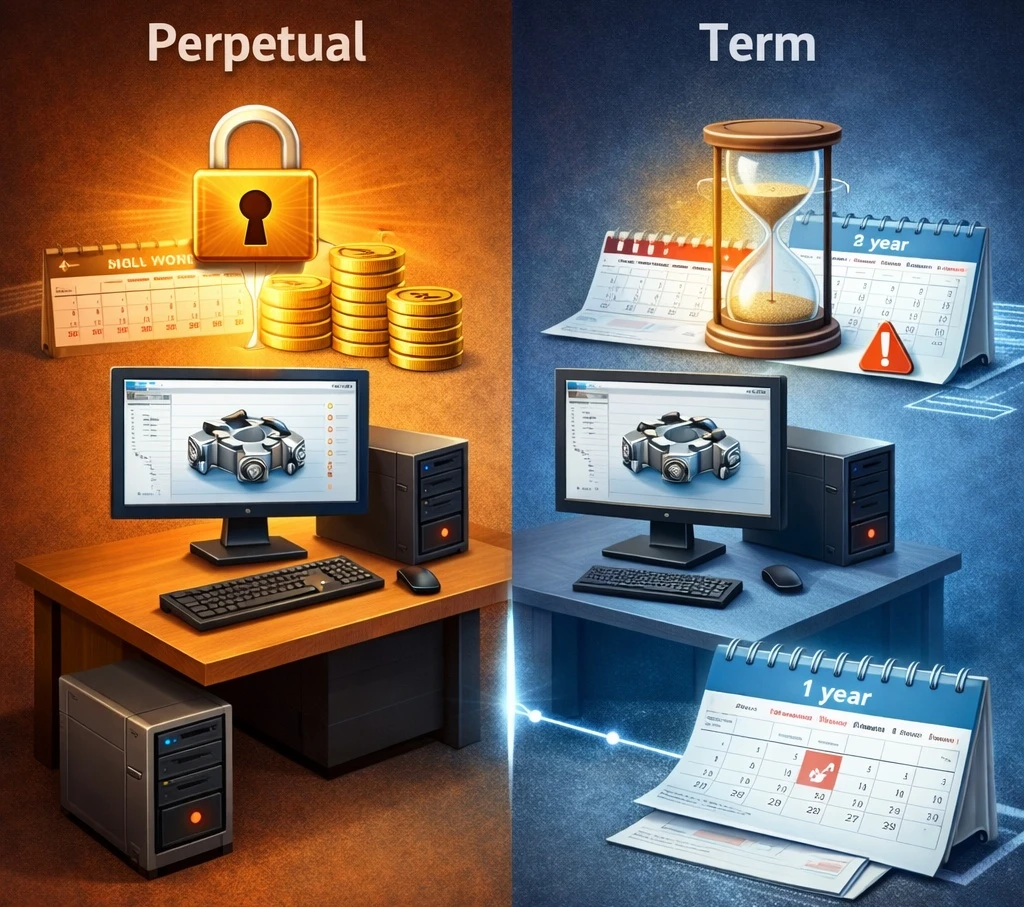
If you expect your team to use SOLIDWORKS for years, perpetual licensing may offer better long-term value. The upfront cost is higher, but over time it can be more cost-effective.
On the other hand, term licensing gives you flexibility. It works well for short-term projects, seasonal demand, contract engineers, or companies that want to avoid a large upfront investment. It is often easier to budget because the cost is predictable.
There is also a strategic difference. With perpetual licensing, you retain access to the version you purchased even if you stop paying for maintenance. You will lose updates and support, but you still own that release. With term licensing, access ends when the term ends.
A good way to think about it:
Choose perpetual + subscription if SOLIDWORKS is a long-term core tool for your business. Choose term licensing if flexibility matters more and your needs may shift quickly.

3. Licensing limits matter more than most teams expect
SOLIDWORKS licensing is not only about how many seats you need. Just as important, it is about how and where those seats are used.
This is where companies often run into issues.
Territory and region
Some licenses come with territory or reseller-related restrictions. So, if your users are spread across countries or regularly work offshore, it is important to confirm how those rules apply before deployment.
Concurrent usage
With SNL, peak usage matters more than total installed seats. For example, if people leave sessions open overnight or borrow licenses for offline work, those seats may stay tied up longer than expected. That is why usage monitoring is so valuable. Real usage data often tells a very different story than assumptions.
Borrowing and offline work
Floating licenses can support offline work through borrowing. That is a major benefit for remote users. Still, your team should understand how borrowing works, how long seats stay checked out, and how those borrowed licenses affect availability for everyone else.
Hosting and virtualization
Today, many teams want to run SOLIDWORKS in the cloud, in virtual environments, or through hosted infrastructure. Those options can work very well, but they also introduce support, compliance, and architecture considerations.
That is why it is important to use validated environments and trusted partners. The right setup can improve access, performance, and scalability. The wrong setup can create support issues and unnecessary risk.
Add-ons and licensing models
It is also important to remember that SOLIDWORKS add-ons such as Simulation, Composer, and PDM may follow different licensing rules. In some cases, licensing may be tied to a named user rather than a machine. Because of that, it is worth reviewing the full stack, not just the core CAD seat.