SOLIDWORKS error pop up: the source folder is not found
Sometimes when attempting to modify an existing SOLIDWORKS installation, the installation manager will pop up with the error, the source folder is not found.
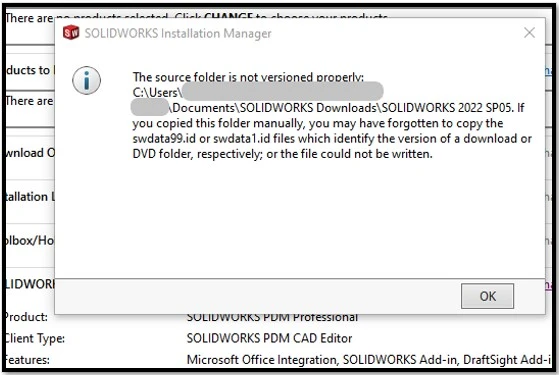
- Since the installation manager is not detecting the swdata99.id file, we can usually resolve this by finding it, or recreating it.
- First, navigate to the folder that the Solidworks Installation manager automatically creates during the initial installation.
- By default, this location is usually ~\Documents\SOLIDWORKS Downloads\SOLIDWORKS 20XX
- If you have multiple folders in the SOLIDWORKS Downloads folder, navigate to the folder for the current year that is installed.
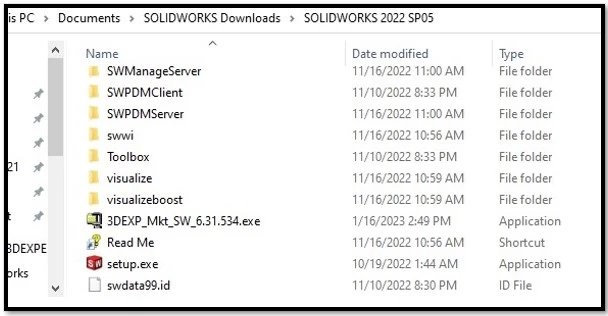
Example: in this example screenshot, we are viewing the SOLIDWORKS 2022 SP05 folder.
- The swdata99.id file is located in this folder shown in the screenshot above.
- Right click the swdata99.id file and select COPY.
- Paste the copied file into the Downloads folder. This is usually where the setup file was initially launched. If you launched the initial setup file from a different folder, paste the swdata99.id file into that folder.
Attempt to modify the SOLIDWORKS installation again and you should not see the versioning error.